
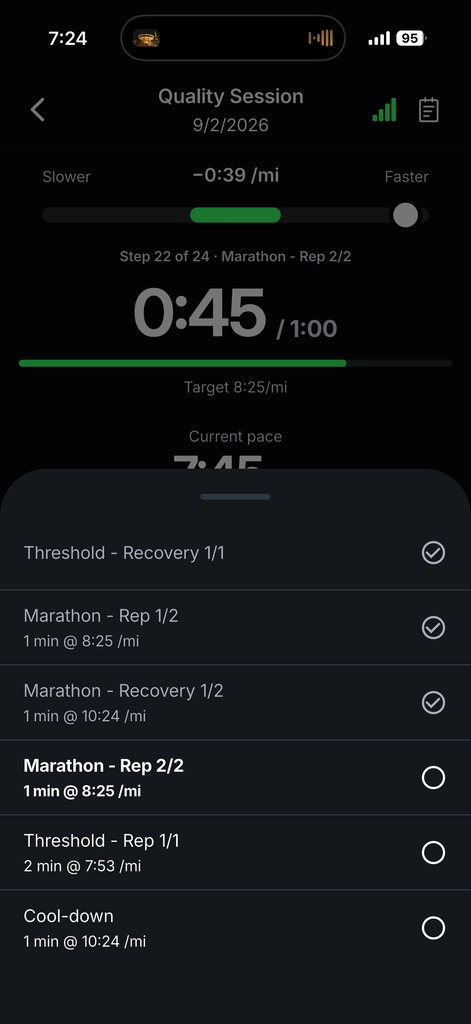
You can now record your runs directly in the V.O2 app. You don’t need a GPS watch, just your phone. The Workout Recorder uses your phone’s GPS to track distance and pace. It guides you through each step of your scheduled workout with live pace feedback, vibration alerts and optional audio prompts, so you can follow the workout without looking at your screen.
The Workout Recorder is available on both iOS and Android.
Before you start: allow location access
The recorder needs your phone’s location to measure distance and pace. The first time you start an outdoor workout, your phone will ask you to allow V.O2 to use your location. Tap Allow to continue.
If you declined the prompt earlier, you can turn location access on in your phone’s settings:
- iOS: Settings → V.O2 → Location. Choose While Using the App and turn on Precise Location.
- Android: Settings → Apps → V.O2 → Permissions → Location. Choose Allow only while using the app and turn on Use precise location.
Start a workout
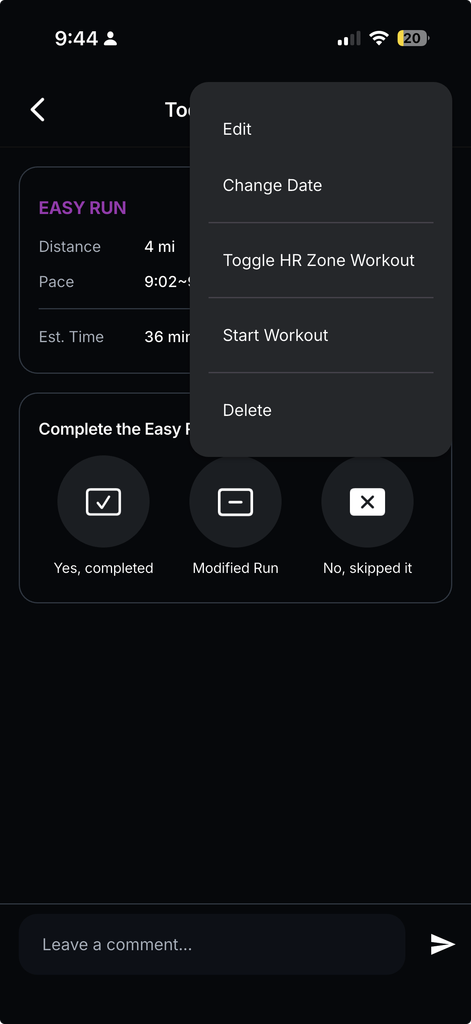
- Open your training calendar and tap the workout you want to do (for example, today’s Easy Run).
- Tap the ••• menu in the top-right corner.
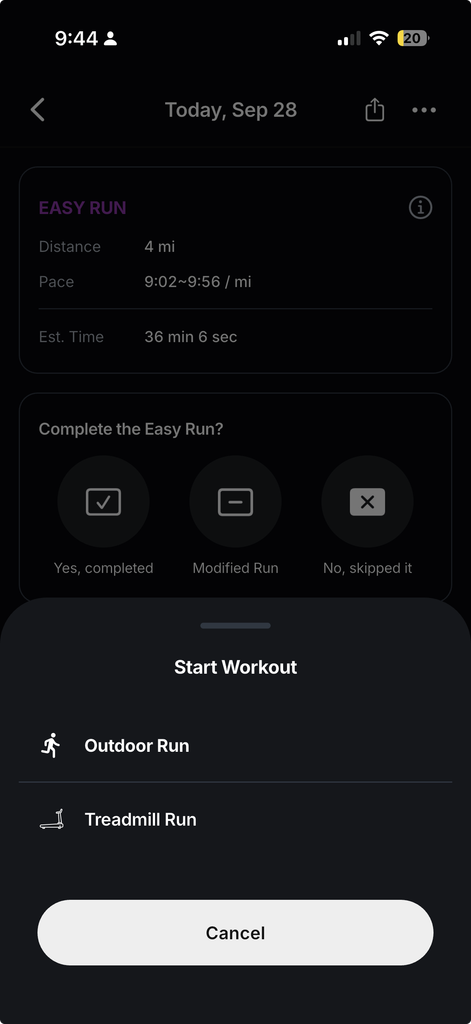
- Select Start Workout.
- Choose Outdoor Run to record with GPS, or Treadmill Run if you’re running indoors.
During your run
Once recording starts, the recorder screen shows everything you need at a glance:
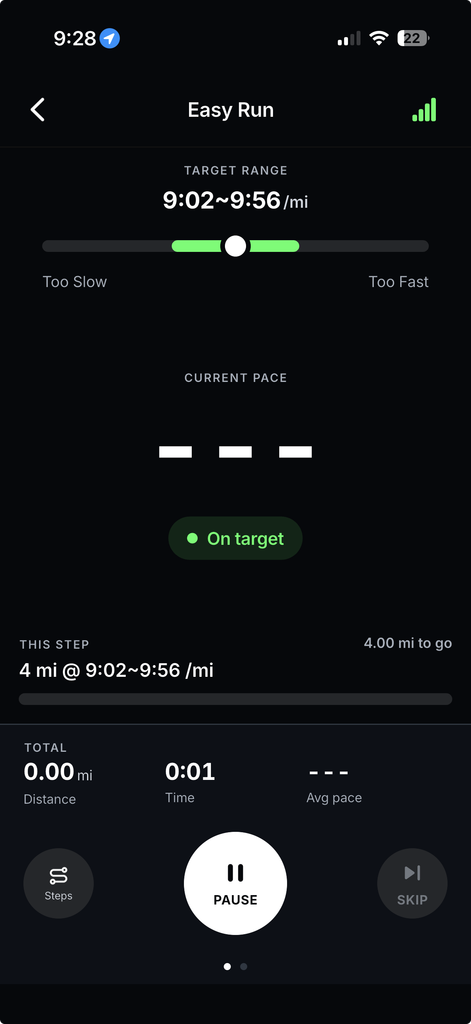
- GPS signal – the bars in the top-right corner show GPS strength. Green bars mean you have a good signal. For best accuracy, wait for a strong signal before you start moving.
- Target range – the pace range for your current step, based on your VDOT (e.g. 9:02–9:56 /mi).
- Pace bar – the dot shows where your pace sits against the target. The green zone is on target; drifting left means you’re too slow, drifting right means you’re too fast.
- Current pace – your live pace. It shows dashes until you’ve covered enough distance for a reading.
- Status badge – tells you whether you’re On target, too fast or too slow.
- This step – the current step of your workout, how far is left, and a progress bar.
- Totals – total distance, elapsed time and average pace for the whole workout.
Controls
- Pause – pauses recording. Tap again to Finishes the activity.
- Steps – view every step of your workout, such as warm-up, intervals, recoveries and cool-down.
- Skip – jump ahead to the next step. Useful if you need to cut a step short. This is only available when your workout has more than one step.
- Swipe left – to see the map.
After your run
When you tap finish, your run will be saved to V.O2.
Customize the recorder
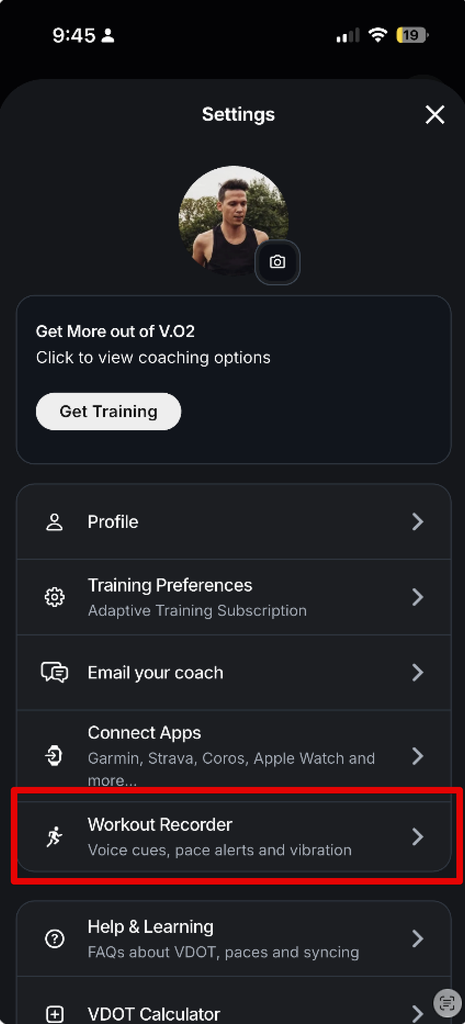
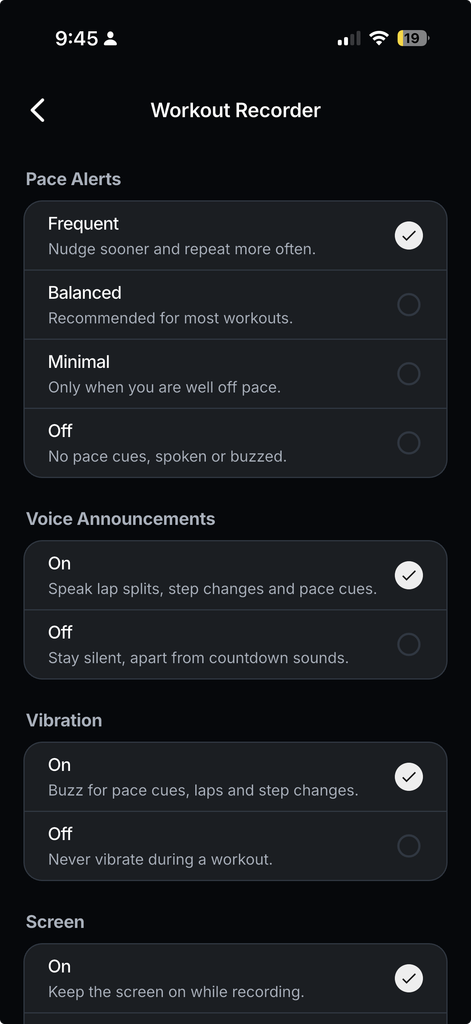
You can choose how the recorder talks to you during a run. Go to Settings and tap Workout Recorder.
Pace Alerts
Controls how often the recorder tells you when you’re off pace.
- Frequent – nudges you sooner and repeats more often.
- Balanced – recommended for most workouts.
- Minimal – only alerts you when you’re well off pace.
- Off – no pace cues, spoken or buzzed.
Voice Announcements
- On – audio prompts guide you through the workout, announcing lap splits, step changes and pace cues so you know when to speed up, slow down or start the next step.
- Off – stays silent, apart from countdown sounds.
Vibration
- On – buzzes for pace cues, laps and step changes.
- Off – never vibrates during a workout.
Tip: Pace Alerts, Voice Announcements and Vibration work together. For example, set Voice Announcements to Off and Vibration to On if you prefer silent, buzz-only cues. Setting Pace Alerts to Off turns off pace cues, but you’ll still hear or feel lap and step changes.
Tips for accurate recording
- Make sure V.O2 has access to your location with precise location turned on (see Before you start above).
- Start outdoors in an open area and wait for green GPS bars before you begin.
- Charge your phone before long runs. GPS and a screen that stays on both use battery. Turn Screen to Off to save power.
- Tall buildings, dense tree cover and tunnels can reduce GPS accuracy.
Frequently asked questions
Do I need a GPS watch?
No. The Workout Recorder uses your phone’s built-in GPS, so a GPS watch isn’t needed.
Which phones does it work on?
The Workout Recorder works on both iOS and Android.
Can the app talk me through my workout?
Yes. Turn on Voice Announcements in Settings → Workout Recorder. Audio prompts will announce each step change, lap splits and pace cues, so you can follow the whole workout without looking at your phone.
Why does my current pace show dashes?
The recorder needs a short distance and a GPS lock before it can calculate pace. If the dashes don’t go away after you start moving, check that location access is turned on and that you have a clear view of the sky.
Still have questions? Contact us at info@vdoto2.com.